 United States/English



 Baseus Store
 Amazon
 Walmart

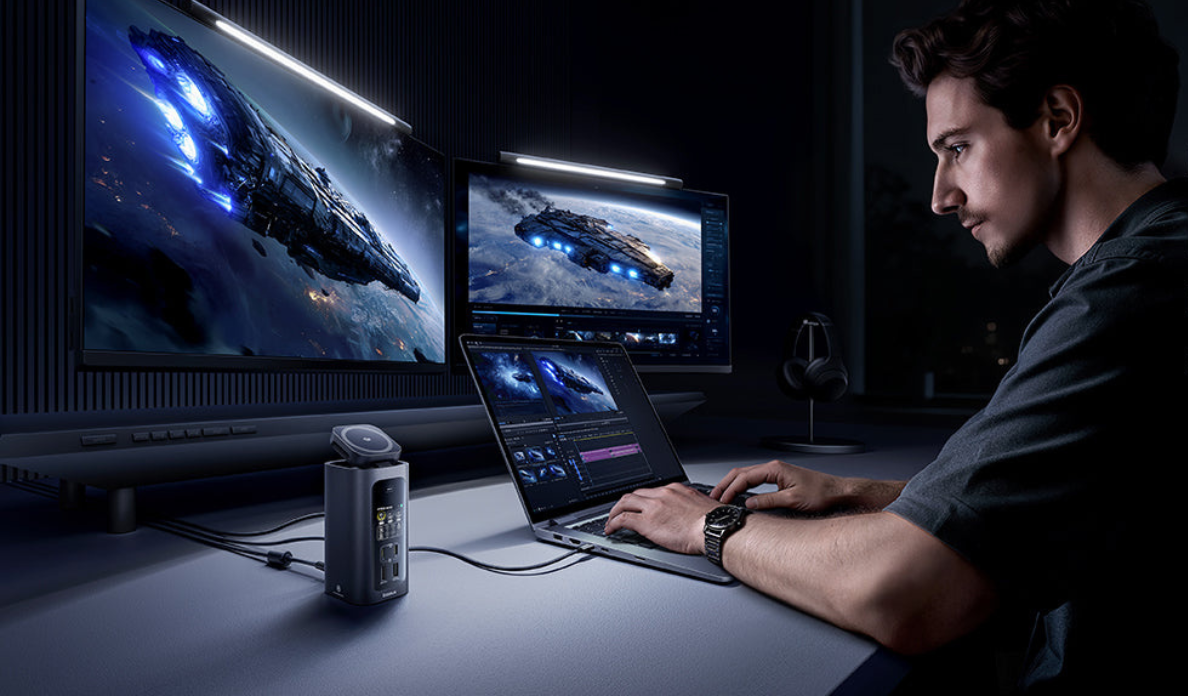
A dual monitor setup can make a laptop feel much more capable.
You get more space for spreadsheets, research, coding, editing, browser tabs, video calls, and daily work. Instead of switching between windows all day, you can keep your main task on one screen and supporting information on the other.
That is why many people start by searching for a docking station for dual monitors.
The mistake is thinking the display ports are the whole product. HDMI or DisplayPort matters, of course, but a serious docking station also needs to handle power, data, accessories, network stability, and device compatibility. If those parts are weak, the setup may look good on paper but feel frustrating in real use.
A good USB C docking station should make your laptop behave more like a desktop workstation. It should connect your monitors, charge your laptop, support your accessories, move files quickly, and keep your desk cleaner.
Display output is only the beginning.
Why Dual Monitors Need More Than HDMI Ports
Dual monitors depend on more than simply having two display ports.
The first thing to check is display support. A dock may have two HDMI ports, but that does not automatically mean it can run both displays at the resolution and refresh rate you want. A 4K docking station needs enough bandwidth to send high quality video while also supporting the rest of the connected devices.
Bandwidth is the hidden part of the setup. Video output, USB data, Ethernet, storage devices, and charging all rely on the connection between your laptop and the dock. When that connection is limited, the dock may reduce resolution, refresh rate, or performance.
Refresh rate also matters. A 4K display at a lower refresh rate may be acceptable for simple office work, but it can feel less smooth for design, editing, dashboards, and long hours of multitasking. For many workstation users, 4K support is only useful when it also feels stable and clear in daily use.
Laptop compatibility is just as important. Some laptops support multiple external displays through USB C, USB4, or Thunderbolt. Others have a USB C port that supports charging and data, but not display output. That is why the same dock can work perfectly with one laptop and feel limited with another.
USB IF explains that USB4 helps optimize allocations for display data flow over USB Type C, and that the connection scales to the best mutual capability of the devices being connected. In plain terms, your dock and laptop need to support the same level of display and data performance for the setup to work as expected.
Power Delivery: Why Charging Matters in a Dock
A docking station is not just an adapter.
For a proper desk setup, it should also power the laptop. Otherwise, you still have to plug in a separate charger, which means the dock only solves part of the problem.
Power Delivery matters because it turns the dock into the center of the workstation. When your laptop, monitors, keyboard, mouse, storage, and charging all connect through one main setup, your desk becomes easier to use. You sit down, connect the laptop, and everything is ready.
A Windows docking station with strong power support is especially useful for people who move between meeting rooms, home office, and office desk setups. It reduces cable handling and keeps the workstation more consistent.
The important detail is that power is shared. A dock may have strong total output, but the available power still depends on how its ports are designed and how many devices are connected. That is why it is worth checking both the total output and the specific laptop charging ports.
The Baseus Spacemate RD1 Pro 15 in 1 Win Docking Station is listed with 160W total output and dual 100W USB C PD ports, giving it a stronger charging role than a basic hub. This matters for users who want a dock that can support the laptop and other devices at the same time.
Data Transfer and Port Layout
A dock becomes truly useful when the port layout matches your real workflow.
For many people, that means more than monitor output. A normal desk setup may include a keyboard, mouse, external SSD, webcam, microphone, Ethernet cable, SD card, phone, tablet, and sometimes another laptop accessory. If your dock cannot support those connections cleanly, you end up adding extra adapters again.
Data transfer speed matters here. External drives, large files, photos, videos, backups, and project folders can all feel slow on a weak port. If you work with media files, product images, presentations, or creative projects, fast data access is not a luxury. It saves time every day.
Port placement matters too. A 15 in 1 docking station should not only offer many ports. It should organize them in a way that makes sense for a desk. Frequently used ports should be easy to reach, while permanent connections like monitors, Ethernet, and power should stay tidy.
Ethernet is another practical feature. WiFi is convenient, but a wired connection is often more stable for calls, file uploads, remote work, gaming, and cloud based tasks. A dock with Ethernet can make the whole workstation feel more reliable, especially in shared offices or crowded home networks.
The best docking station for dual monitors should therefore be judged as a complete connection system, not a display adapter with bonus ports.
Why Wireless Charging Belongs on a Modern Dock
A modern desk has more than a laptop.
There is usually a phone on the side, maybe earbuds, a watch, or a tablet nearby. If every device needs its own cable, the desk quickly becomes cluttered.
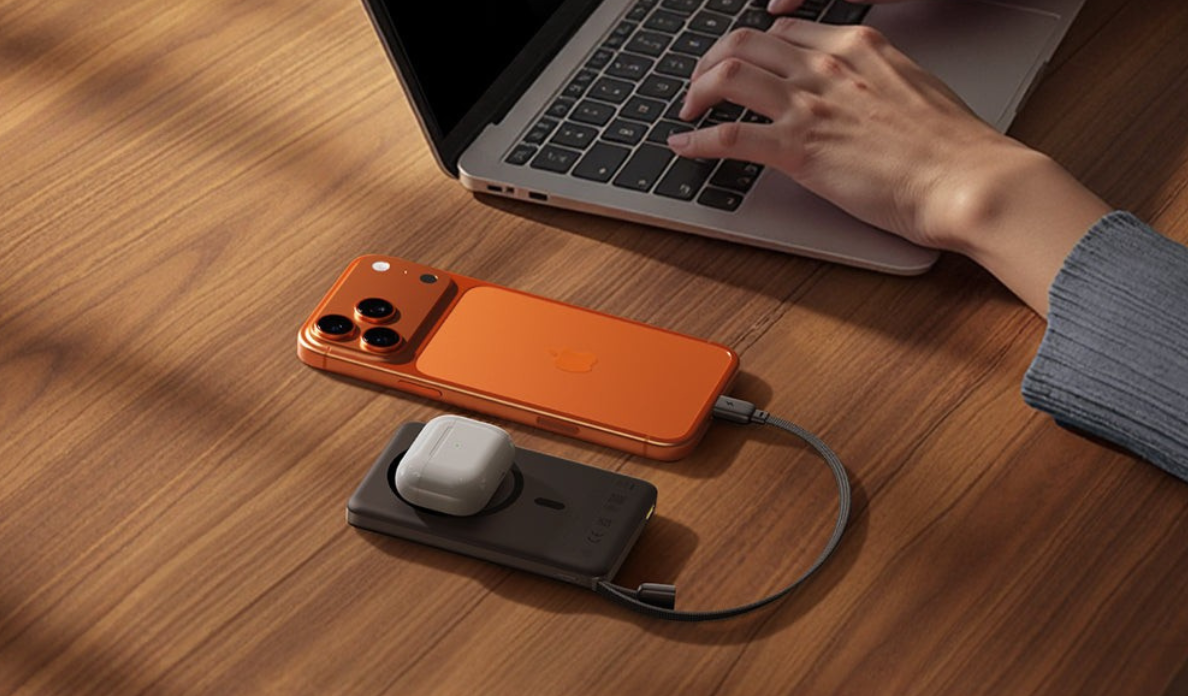
Wireless charging helps reduce that mess. It gives the phone a defined place on the desk and keeps it powered without adding another charging cable across the workspace.
This may sound like a small feature, but it changes how the dock fits into the day. When your phone sits on a wireless charging pad next to your laptop setup, the dock becomes part of your whole work routine, not just your computer connection.
The Baseus Spacemate RD1 Pro includes a Qi2.2 25W wireless pad, which adds phone charging to the workstation instead of treating it as a separate accessory. Baseus lists the dock with 160W total output, dual 100W USB C PD ports, and the Qi2.2 25W wireless pad, positioning it as both a docking and charging setup for multiple devices.
That is the direction modern desks are moving. A dock should not only connect monitors. It should help manage the devices that sit around the laptop too.
Windows Workstation Compatibility
Compatibility is where many docking station problems begin.
A USB C port can look the same on two laptops but behave very differently. One may support USB4, Thunderbolt, charging, display output, and high speed data. Another may only support basic data transfer and charging. The port shape alone does not tell the whole story.
For a Windows docking station, users should check the laptop’s USB C, USB4, or Thunderbolt specifications before buying. This is especially important for dual monitor setups because display output depends on what the laptop can send through that port.
DisplayPort Alt Mode is another term worth knowing. It allows a USB C port to carry video signals to a monitor or dock. If the laptop does not support display output through USB C, the dock cannot create that function by itself.
This is why compatibility notes matter. They are not small print. They tell you whether the dock can actually deliver the setup you expect.
The Spacemate RD1 Pro is designed as a Windows docking station, so it makes sense for users building a Windows based workstation to check their laptop’s USB C, USB4, or Thunderbolt support before relying on dual display output.
A good rule is simple: check the laptop port first, then choose the dock.
Where Spacemate RD1 Pro Fits In
The Baseus Spacemate RD1 Pro fits this category because it is built around more than display expansion.
It is a 15 in 1 docking station with 160W total output, dual 100W USB C PD ports, and a Qi2.2 25W wireless pad. That means it can help manage laptop charging, phone charging, and workstation expansion in one desk setup.
This matters because dual monitor users usually need more than screens. They need a reliable way to power the laptop, connect accessories, move files, and keep the desk organized. A dock that only adds video output may solve one problem, but it does not fully support the workstation.
The RD1 Pro is also positioned specifically as a Win docking station, which makes it especially relevant for users building a Windows desk setup around USB C, USB4, or Thunderbolt capable laptops.
For people who want a docking station for dual monitors, the main value is not only the number of ports. It is how the dock combines power, display, wireless charging, and everyday connectivity into one cleaner setup.
How to Choose the Right Docking Station for Dual Monitors
Start with display support. Check whether the dock supports the resolution and refresh rate you want, and make sure your laptop can send that display signal through USB C, USB4, or Thunderbolt.
Then look at power. If the dock cannot charge your laptop well, your desk will still need a separate laptop charger. For a cleaner setup, power delivery should be part of the dock’s core function.
Next, check the port layout. A 15 in 1 docking station is useful only when the ports match your devices. Think about monitors, external drives, keyboard, mouse, Ethernet, storage cards, webcam, microphone, phone, and other everyday tools.
Also consider whether wireless charging helps your desk. If your phone stays beside your laptop all day, a dock with wireless charging can reduce cable clutter and make the desk easier to maintain.
Finally, check compatibility carefully. This is especially important for a 4K docking station because high resolution display output depends on both the dock and the laptop.
The right dock should feel boring in the best way. You connect it, everything works, and you stop thinking about cables.
Conclusion
The best docking station for dual monitors is not just the one with two display ports.
It is the one that supports the whole workstation.
Dual monitor output matters, but so do bandwidth, refresh rate, laptop compatibility, power delivery, data transfer, Ethernet, and desk organization. If any of those pieces are weak, the setup can feel less stable than it should.
A strong USB C docking station should help your laptop act like a desktop while keeping the desk cleaner and easier to use.
The Baseus Spacemate RD1 Pro brings together a 15 in 1 design, 160W total output, dual 100W USB C PD ports, and a Qi2.2 25W wireless pad, making it a practical option for users who want a more complete Windows workstation setup.
To explore more workstation accessories, visit the Baseus hubs and docks collection.
FAQs
What is the best docking station for dual monitors?
The best docking station for dual monitors should support the resolution and refresh rate you need, while also offering laptop charging, fast data ports, Ethernet, and strong compatibility with your laptop.
Is a USB C docking station enough for dual monitors?
A USB C docking station can support dual monitors if both the dock and laptop support the required display output. Check for USB4, Thunderbolt, or DisplayPort Alt Mode support before buying.
What does a 15 in 1 docking station mean?
A 15 in 1 docking station means the dock offers 15 connection or charging functions. The value depends on whether those ports match your actual desk setup, not just the number itself.
Why choose a Windows docking station?
A Windows docking station is useful if you are building a workstation around a Windows laptop. It is still important to check your laptop’s USB C, USB4, Thunderbolt, and display support.
Do I need a 4K docking station?
You need a 4K docking station if you use 4K monitors or want sharper text and visuals. Make sure the dock and laptop both support the resolution and refresh rate you expect.
Why does power delivery matter in a dock?
Power delivery matters because it lets the dock charge your laptop while connecting monitors and accessories. This creates a cleaner setup with fewer cables.
Why would a dock need wireless charging?
Wireless charging helps keep your phone powered at the desk without adding another cable. On a modern dock, it can make the whole workstation feel more organized.